
Before you start
Use this when Medicare requires you to become the Authorized Official for your practice organization. CMS requires you to submit this request yourself before GetPaneled can request access.
- CMS I&A username and password.
- Your practice organization name, EIN, or NPI Type 2.
- The practice entity's CP 575 IRS letter.
Quick steps
The role-change request usually takes about 10 business days for Medicare to approve after it is submitted and the required document is uploaded. It can sometimes be faster, but plan around the full review window.
See the screenshots and detailed instructions below for more guidance on each step.
- 1Use the same CMS I&A account you use to access your NPI Type 1. If you have an NPI Type 1, you already have a CMS I&A account. Use those credentials to log in at CMS I&A.
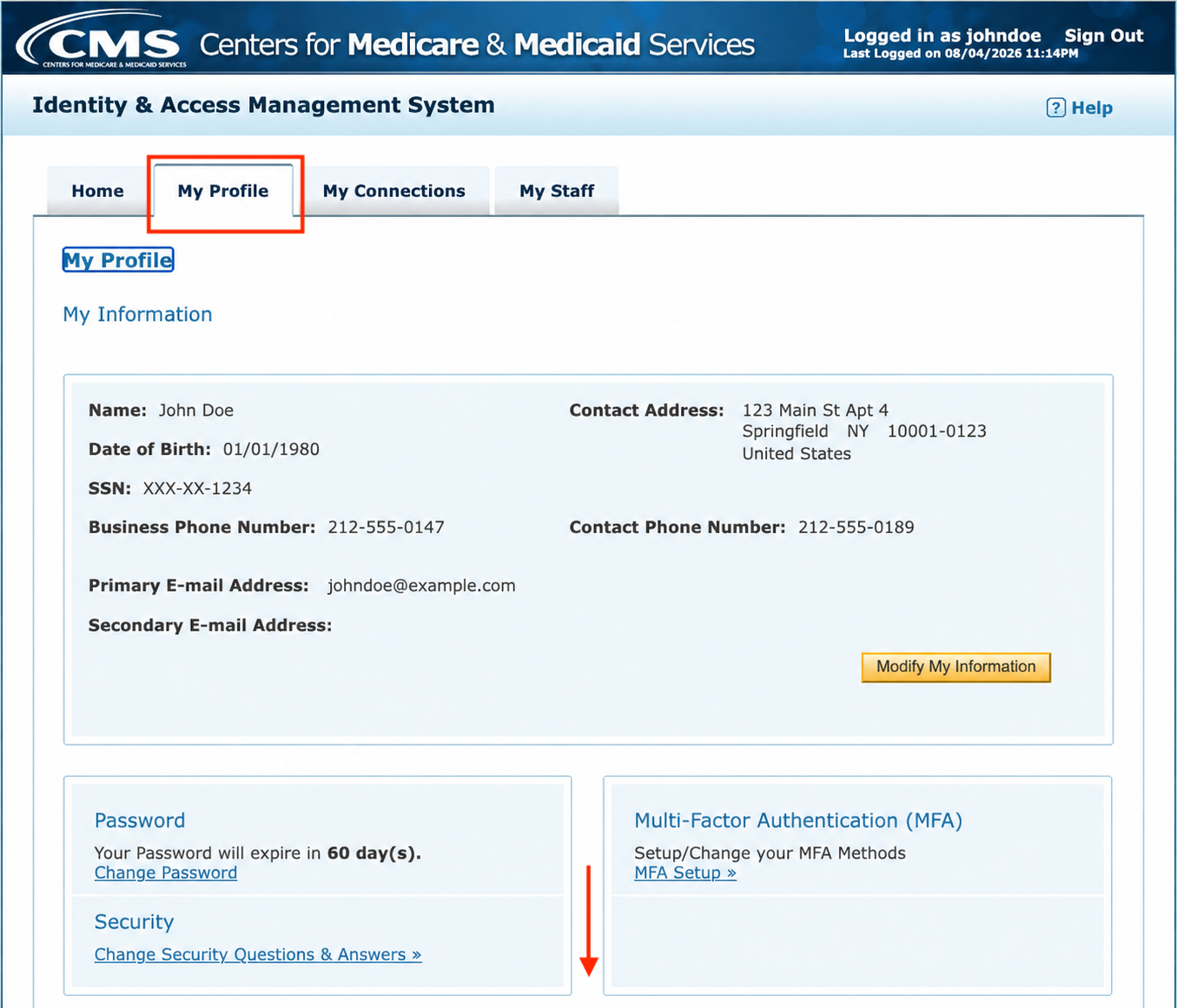
- 2Go to My Profile.
- 3In the Employer section, find your organization. This is the business entity you are trying to get credentialed with Medicare. It should appear here if you have already registered it for an NPI Type 2. If it is missing, add the employer first using this guide.
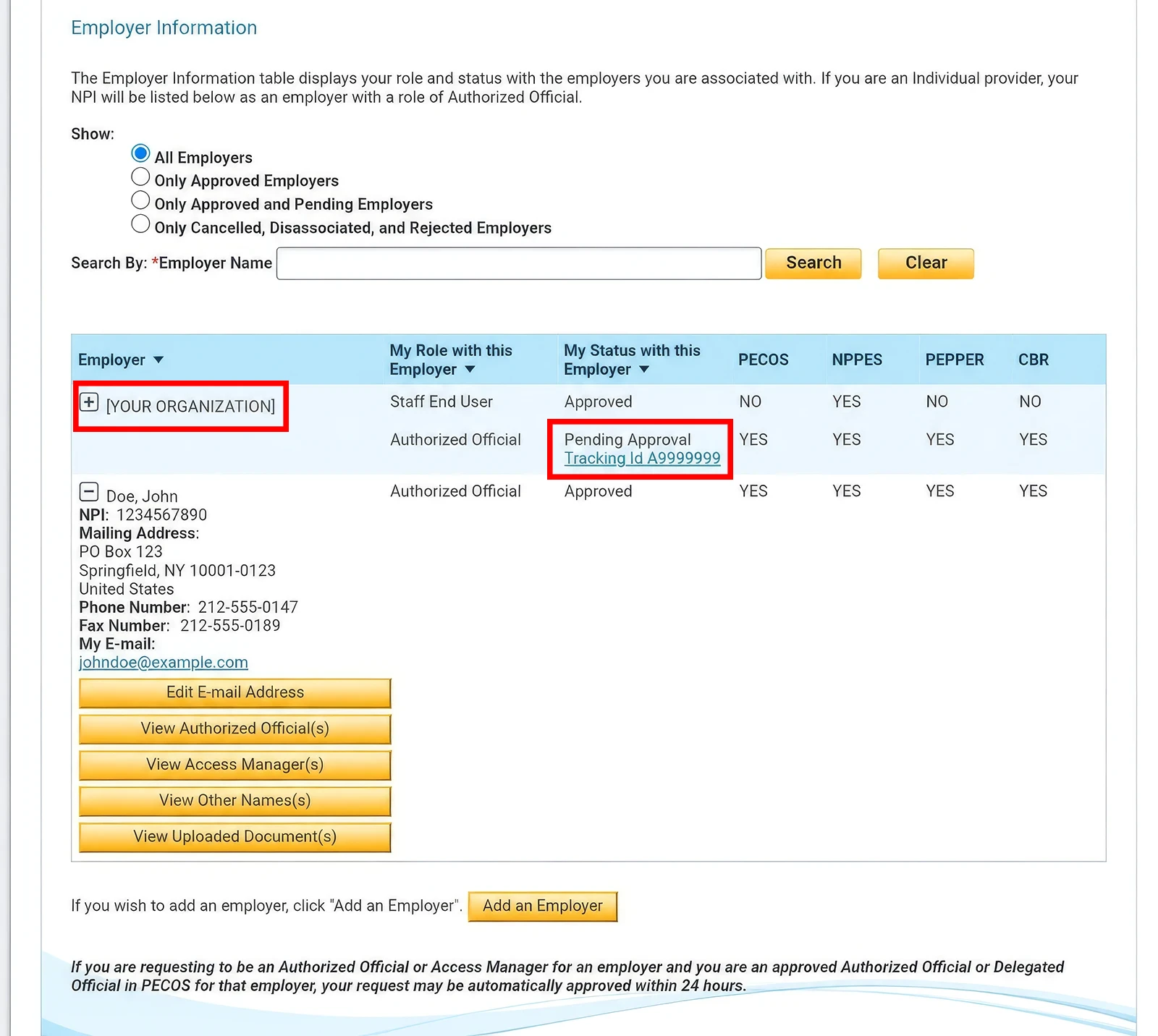
- 4Expand the organization details by clicking the plus sign next to the employer. The employer should be your organization, not GetPaneled.
- 5Select Request Role Change.
- 6Choose Authorized Official and complete the required fields.
- Very important
- 7After submitting, return to My Profile, find the pending request tracking ID, and click it.
- 8Open Document Management, expand More Information if needed, and upload the CP 575 using Add a Document.
Open My Profile
Use the same CMS I&A account you use to access your NPI Type 1. If you have an NPI Type 1, you already have a CMS I&A account. Use those credentials to log in at CMS I&A.
After you sign in, choose My Profile from the top navigation. This is where CMS lists your personal information, employer relationships, and pending requests.
Find and expand your employer
Scroll to Employer Information and find the row for your practice organization. This is the business entity connected to your EIN or NPI Type 2. Click the plus sign next to that organization row to expand its details.
CMS also lists your individual name or NPI Type 1 as a separate employer row, and that individual row may already say Authorized Official and Approved. That does not mean you are approved for your organization. Use the organization row even when it shows Pending Approval.
If your organization is not listed, stop here and add the employer first. Do not use your individual row or a GetPaneled row in place of your practice organization.
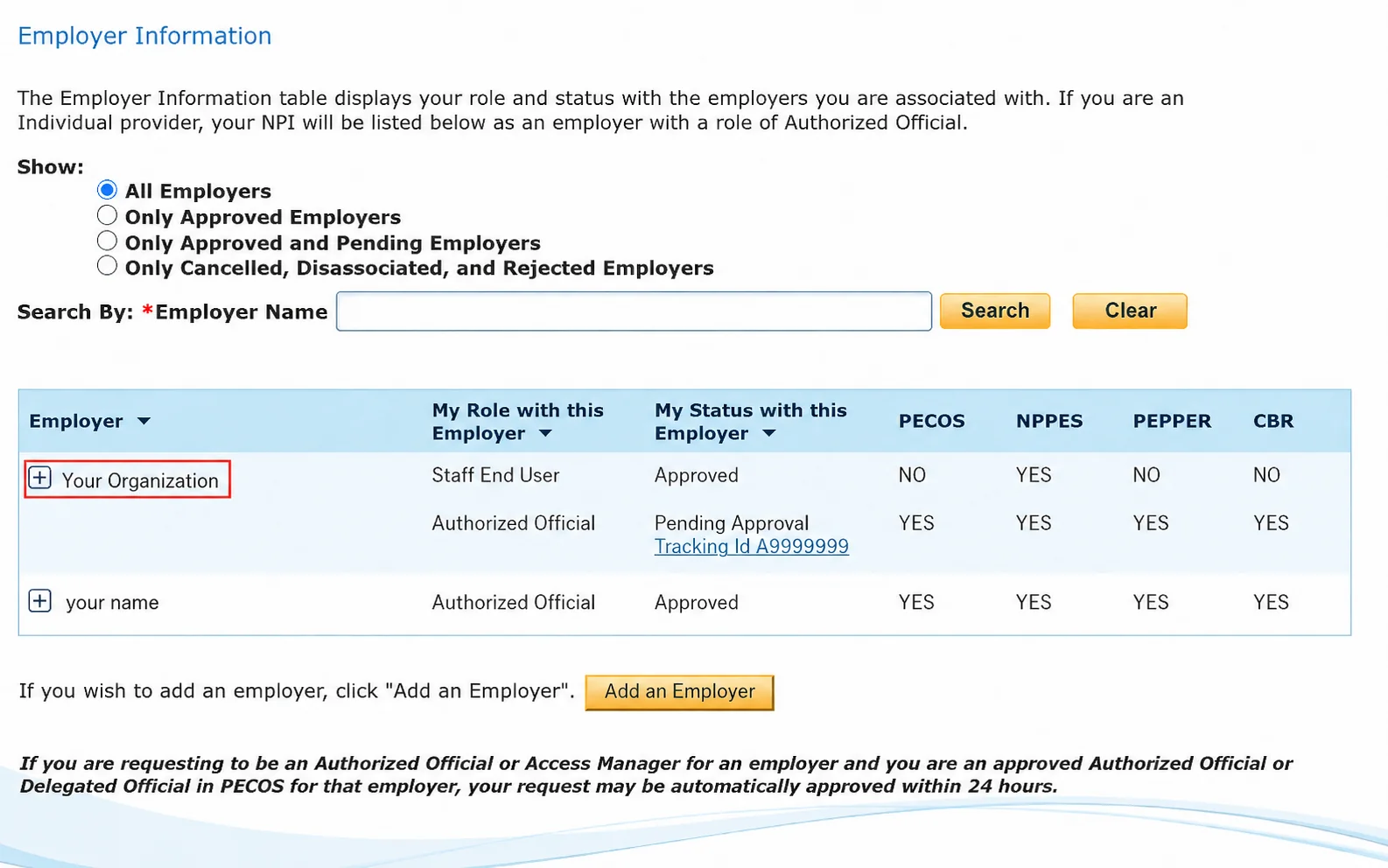
- Confirm the row says your practice organization, not your individual name.
- Click the plus sign on the organization row, even if your individual row already says Authorized Official and Approved.
- If the organization is not listed, add the employer first using the CMS I&A Authorized Official registration guide.
- Do not request the role change under GetPaneled. The role must be for your organization.
Request the Authorized Official role
After you expand the correct organization row, select the orange Request Role Change button. Then choose Authorized Official as the requested role and complete the required fields. CMS may ask you to attest that you are authorized to act on behalf of the organization.
Review the request carefully before submitting. A wrong employer or wrong role can delay the Medicare access process.

- Select Request Role Change under the expanded practice organization.
- Choose Authorized Official, not Staff End User, unless CMS or your organization specifically tells you otherwise.
- Use accurate organization and contact details.
- Submit the request and save any confirmation details CMS provides.
Open the pending tracking ID
Very importantThis step is easy to miss. After submitting the role-change request, go back to My Profile, find the pending request, and click the tracking ID link.
The tracking ID opens the request details where CMS shows required document uploads.
Upload the CP 575 in Document Management
Very importantInside the request details, look for Document Management. It may show that 0 of 1 required documents have been uploaded. If you expand More Information, CMS should explain which document is required.
For this Authorized Official request, CMS commonly asks for the CP 575. The CP 575 is the IRS letter issued when the EIN was first created for the practice entity.
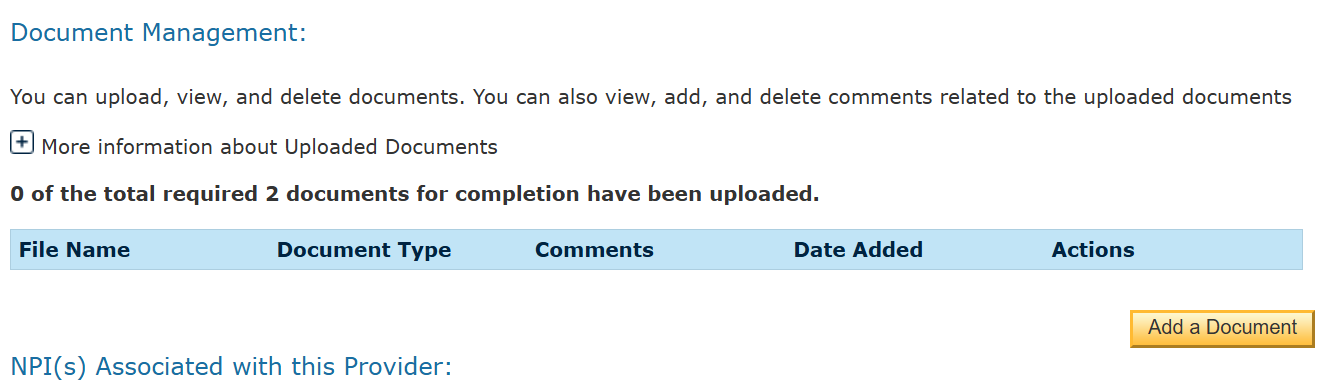
- Click Add a Document.
- Upload the CP 575 for the practice entity.
- Confirm that the document appears in the upload table before leaving the page.
- Keep the tracking ID and uploaded document confirmation with your credentialing records.
After you submit
Once the role-change request and document upload are complete, CMS reviews the request. Approval commonly takes about 10 business days, but timing can vary.
After CMS approves your Authorized Official role, GetPaneled can request the access needed to work on the Medicare enrollment application on your behalf.
- Watch for CMS emails about approval, rejection, or missing documentation.
- Do not delete the CP 575 from your records after uploading it.
- Let GetPaneled know once the role is approved or if CMS asks for a different document.